Unfurnish proof
Unfurnish proof
Use this before-and-after proof to show how AI can improve a real property photo for this exact workflow.
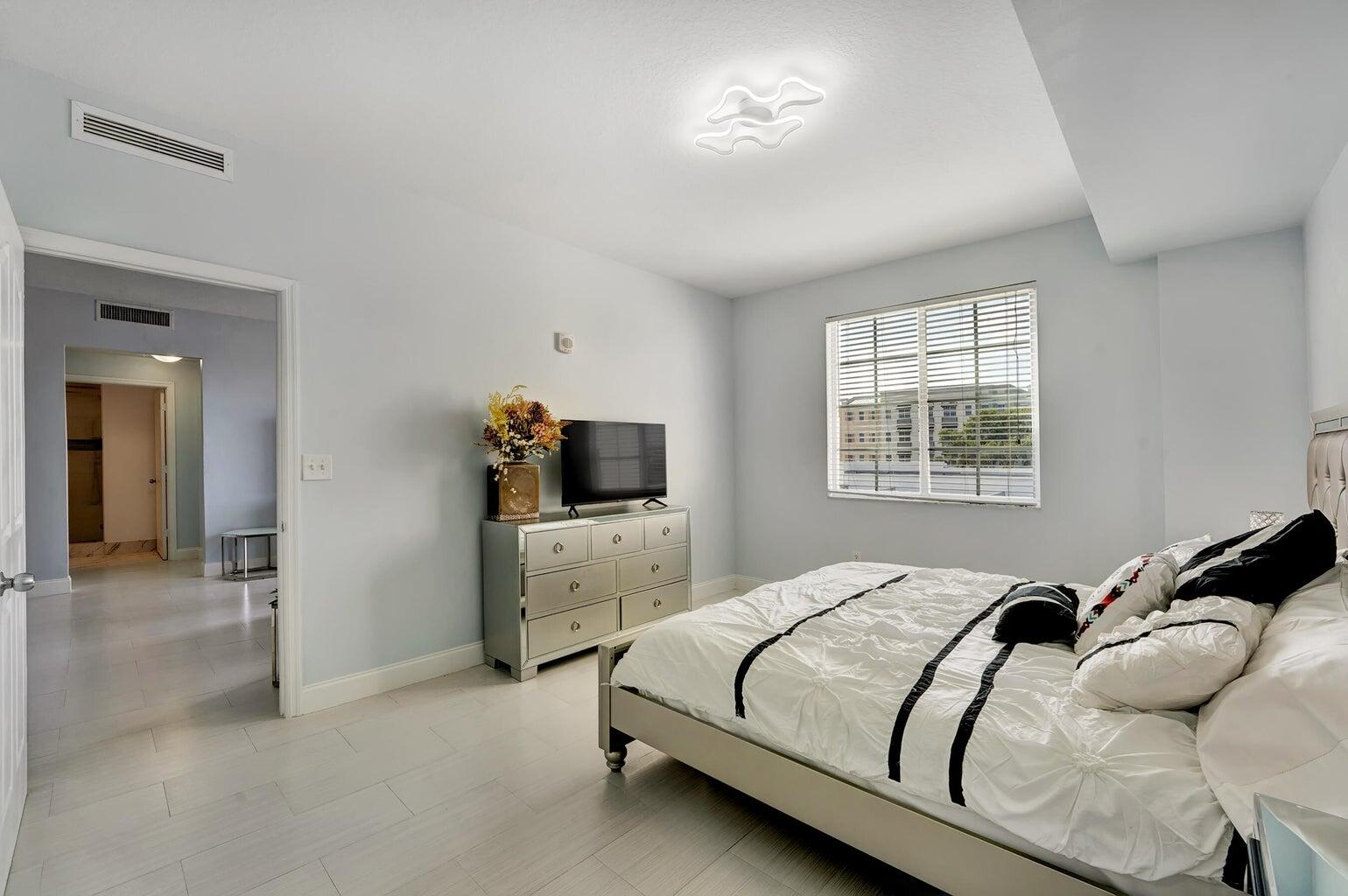
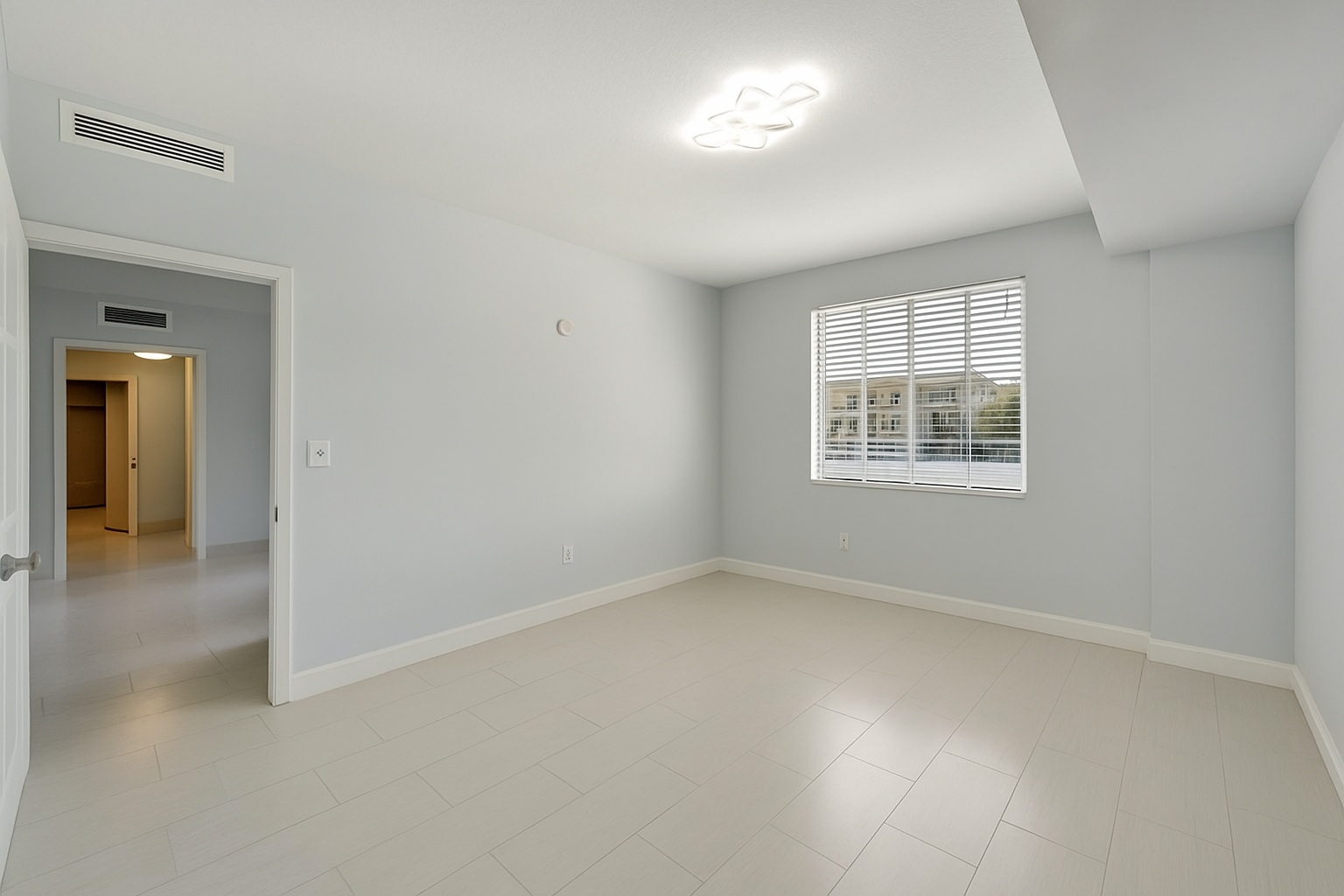
ReelStaged Studio for Agents, photographers, and sellers
Create a blank-slate room photo before staging, redesign, or listing refreshes.
How to remove furniture from a photo
Furniture removal is useful when old, bulky, or distracting pieces make a room harder to market. ReelStaged can help create a cleaner visual starting point for staging or presentation.
Unfurnish proof
Use this before-and-after proof to show how AI can improve a real property photo for this exact workflow.
Virtual staging proof
Use this before-and-after proof to show how AI can improve a real property photo for this exact workflow.
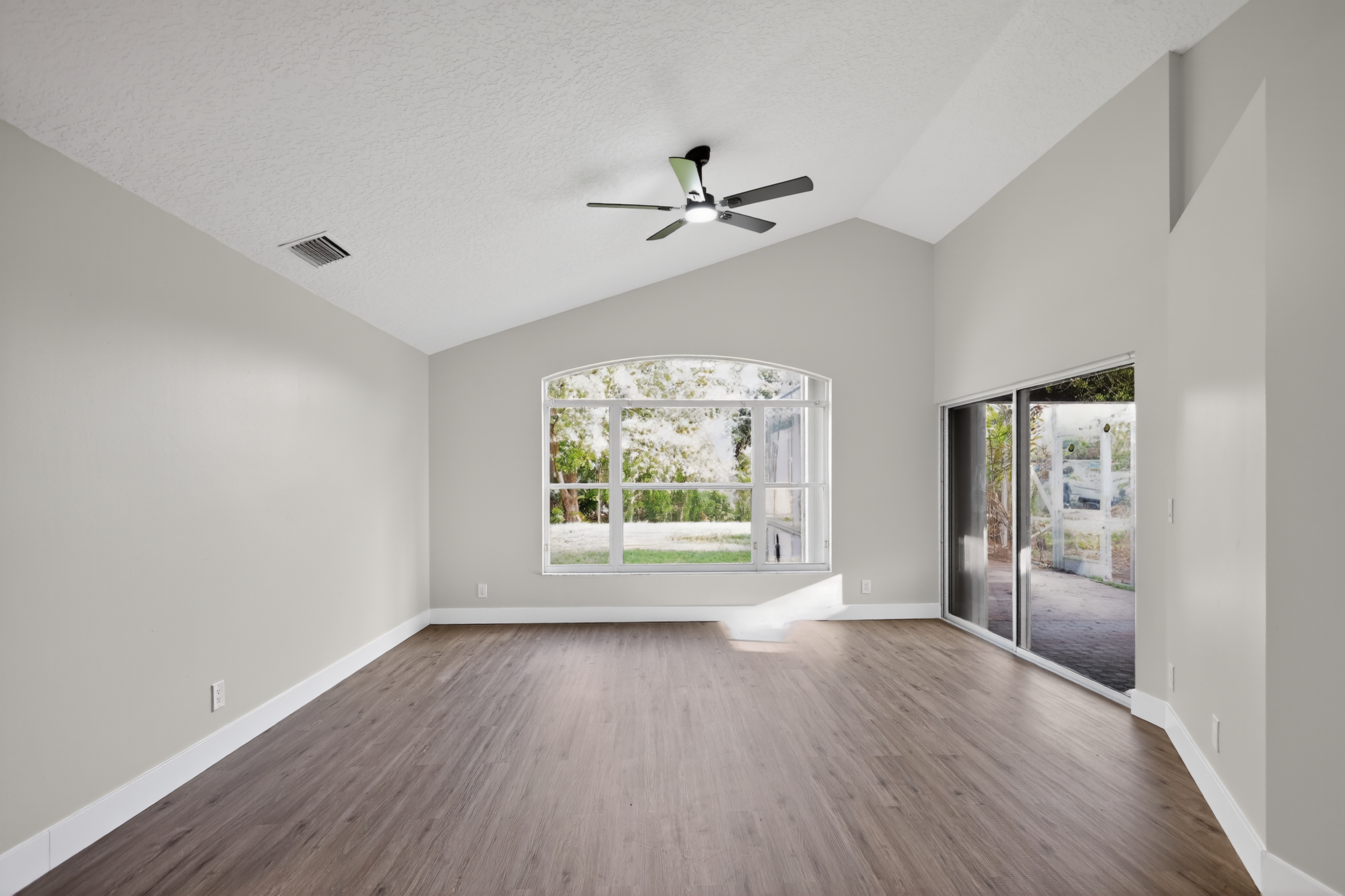
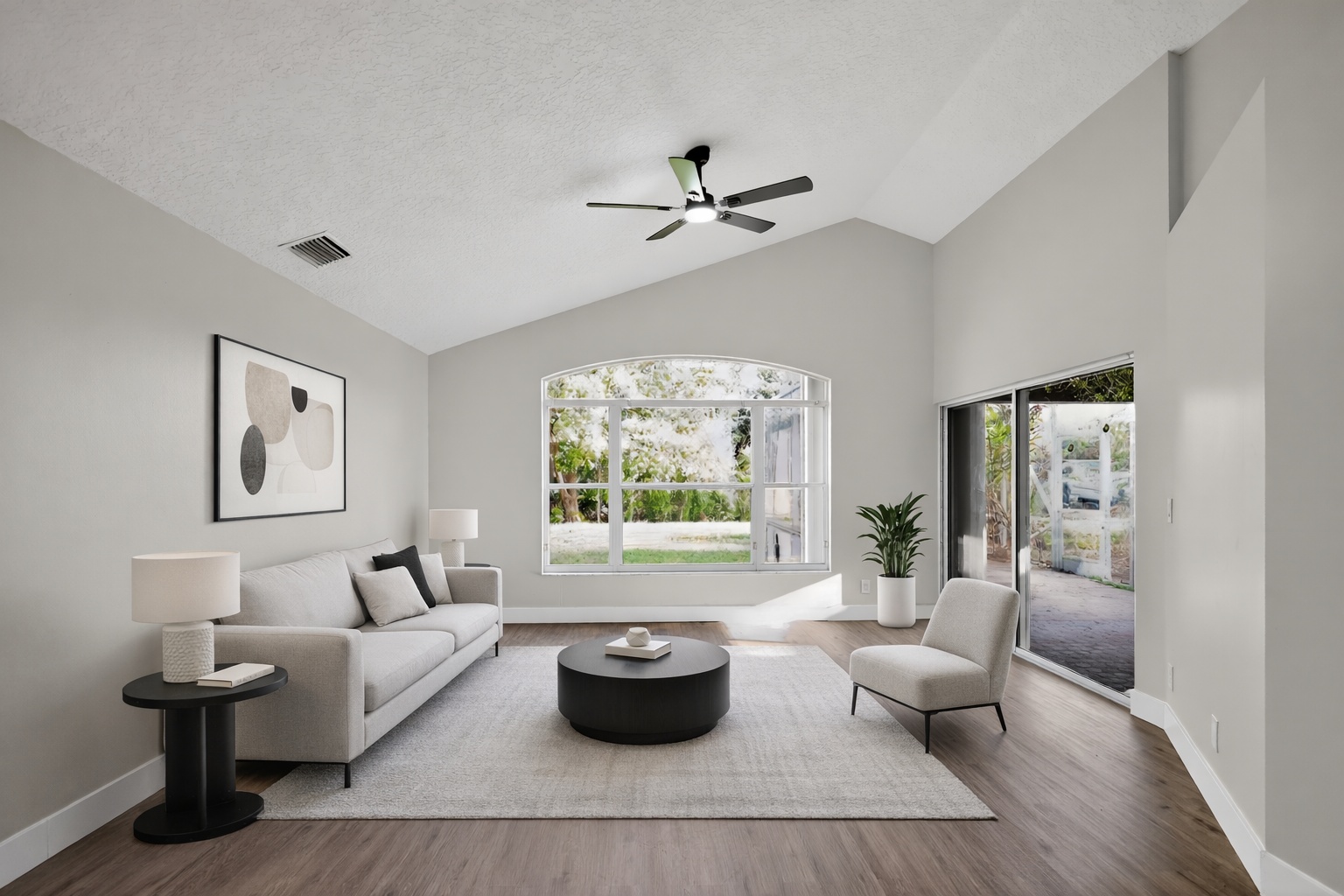
Generate listing-ready visuals in under a minute so you can publish and market faster.
Virtual staging, unfurnish, declutter, renovation, twilight, and enhancement in one workflow.
Designed for listing photos, client presentations, before/after communication, and social promotion.
Search coverage
ReelStaged keeps this page focused on practical property marketing intent instead of generic design inspiration.
Upload the occupied room photo, choose an unfurnish/furniture-removal workflow, and generate a cleaner room visual.
Yes. Unfurnish can create a cleaner starting point before virtual staging.
No. Use AI responsibly and avoid removing permanent property features or conditions buyers need to know about.
Agents, photographers, sellers, property managers, and investors use it to clean up listing visuals.
Step-by-step
Start with a clear photo where the furniture is visible and the room layout is understandable.
Use AI to remove furniture and create a cleaner room visual.
Use the cleaned room as-is or follow with virtual staging/enhancement.
Best use cases
Remove pieces that make the room feel older than the property.
Create a cleaner baseline for buyers and sellers.
Move from occupied photo to empty-room visual before staging.
Offer unfurnish plus staging as a higher-value package.
Responsible use
Furniture removal should clean up presentation, not misrepresent fixed features, damage, room size, or permanent conditions.
Unique keyword lane
This page stays intentionally focused so it does not cannibalize nearby ReelStaged pages for virtual staging, real estate photo editing, enhancement, declutter, renovation previews, or audience-specific workflows.
How to remove furniture from a photo